The HTTP action allows admins to connect the system with external applications by configuring API calls. It supports common HTTP requests such as GET, POST, PUT and DELETE, making it easy to send and receive data from other resources. With simple configuration options for URLs, headers, request bodies, and response mappings, this feature helps automate integrations and streamline data exchange without much complexity.
Create an HTTP Action
Switch to the Admin Portal and open the required Track.
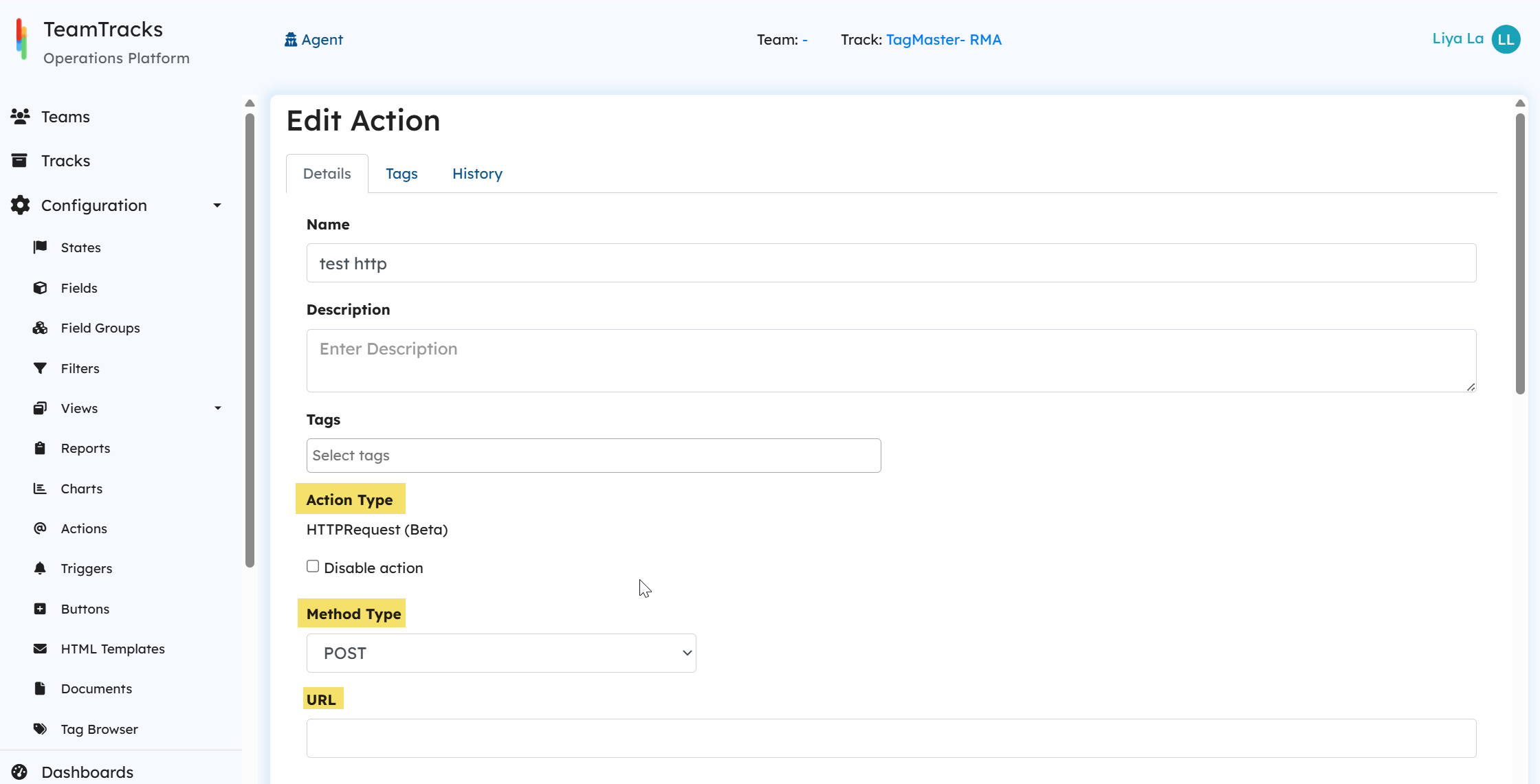
Navigate to Actions→ Click Create New. Enter a Name and Description.
Action Type:
HTTPAction(Beta)Method Type: Choose the appropriate HTTP method:
GET
POST
PUT
DELETE
URL: In the URL field, enter the API endpoint you want to call.
Request Headers: If your API requires headers:
Click the + icon. Add headers as Key Value pairs.

Request Body: If your API call need a request body, you can configure it in two ways:
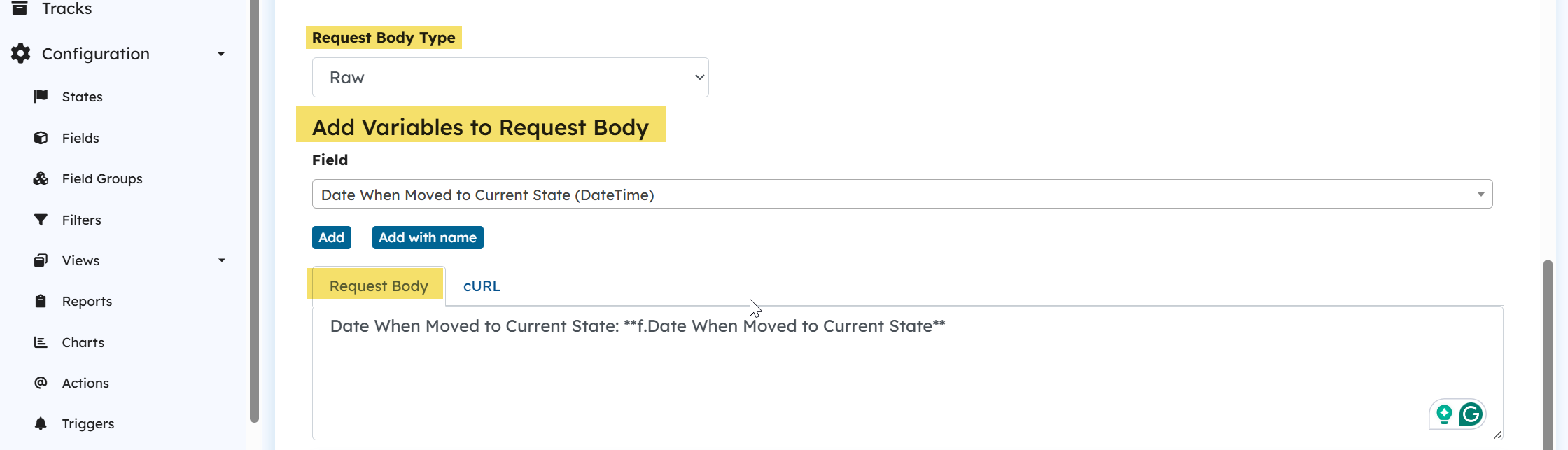
Option 1: Raw
Manually write the request body
Use Add Variable to insert field values from the track
You can insert values with or without the field name (Using Add variable to Body).
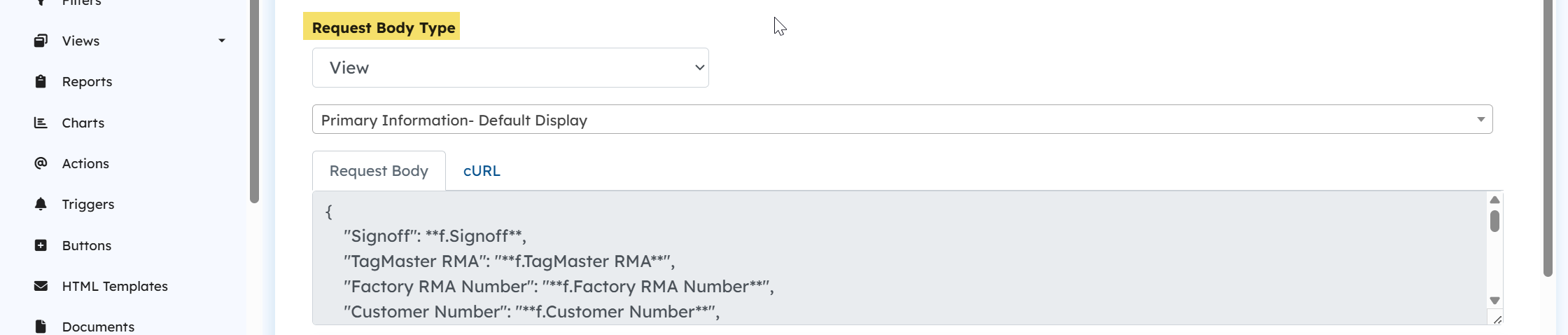
Option 2: View
Select a View from the track
All fields from the selected view are automatically added to the request body
The generated body is read-only and cannot be edited
Note:
If you want to edit the request body when the type is View, change the request body type to Raw. Once switched to Raw, the body becomes editable.
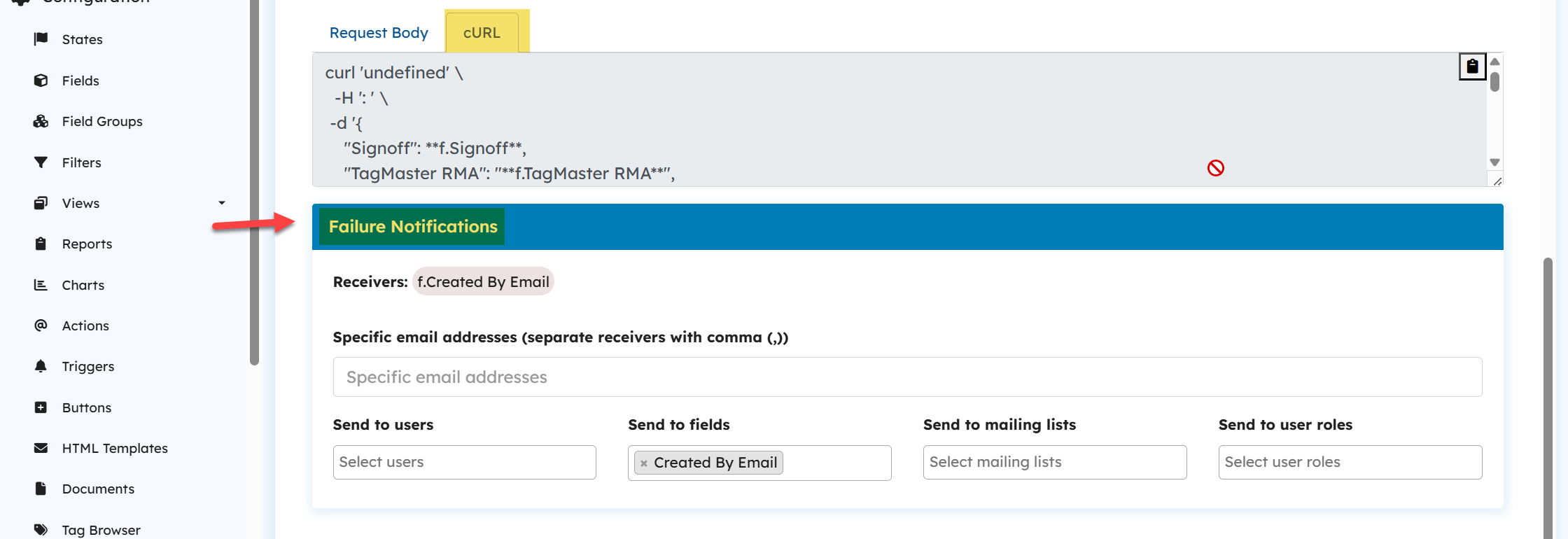
View Request as cURL: Click the cURL tab to preview the request in cURL format.
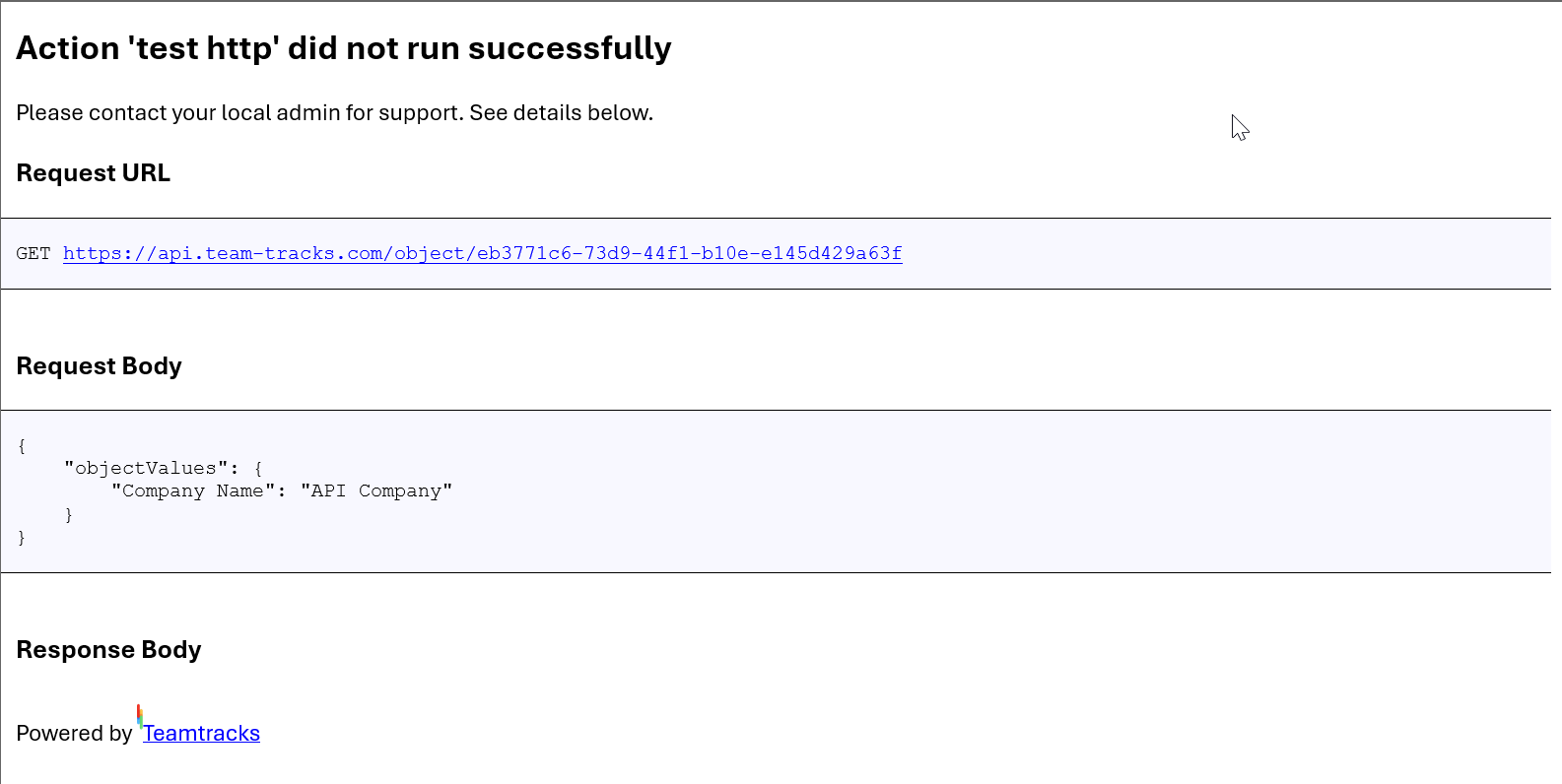
Failure Notification: You can receive email alerts when the API call fails. The email contains all the API details along with any errors. Select the recipients who should receive the email.
Here is a screenshot of the alert email.
Response Field Mapping: If the API response contains JSON, you can map values to track fields. Select the Target Field from the track and enter the value in the syntax ("$" followed by the property enclosed in square brackets. Use single quotes for string properties and no quotes for numbers. (E.g. $['data']['value1'], $['items'][0]['name']))
Supported field types: Text, Integer, Float, Boolean

Click Save