
Introduction
Update Timer State allows you to automatically change the state of a timer field. To do this, you need to specify the field to modify and the state to which the field should change. Once the action is created, you can associate it with triggers and button.
Steps to create an Update Timer State Action
Provide a name Name and Description of your action.
Select UpdateTimerState as Action Type.
Select the timer Field you want to apply the action to.
Select the state to which the timer should change.
Click on Create button.
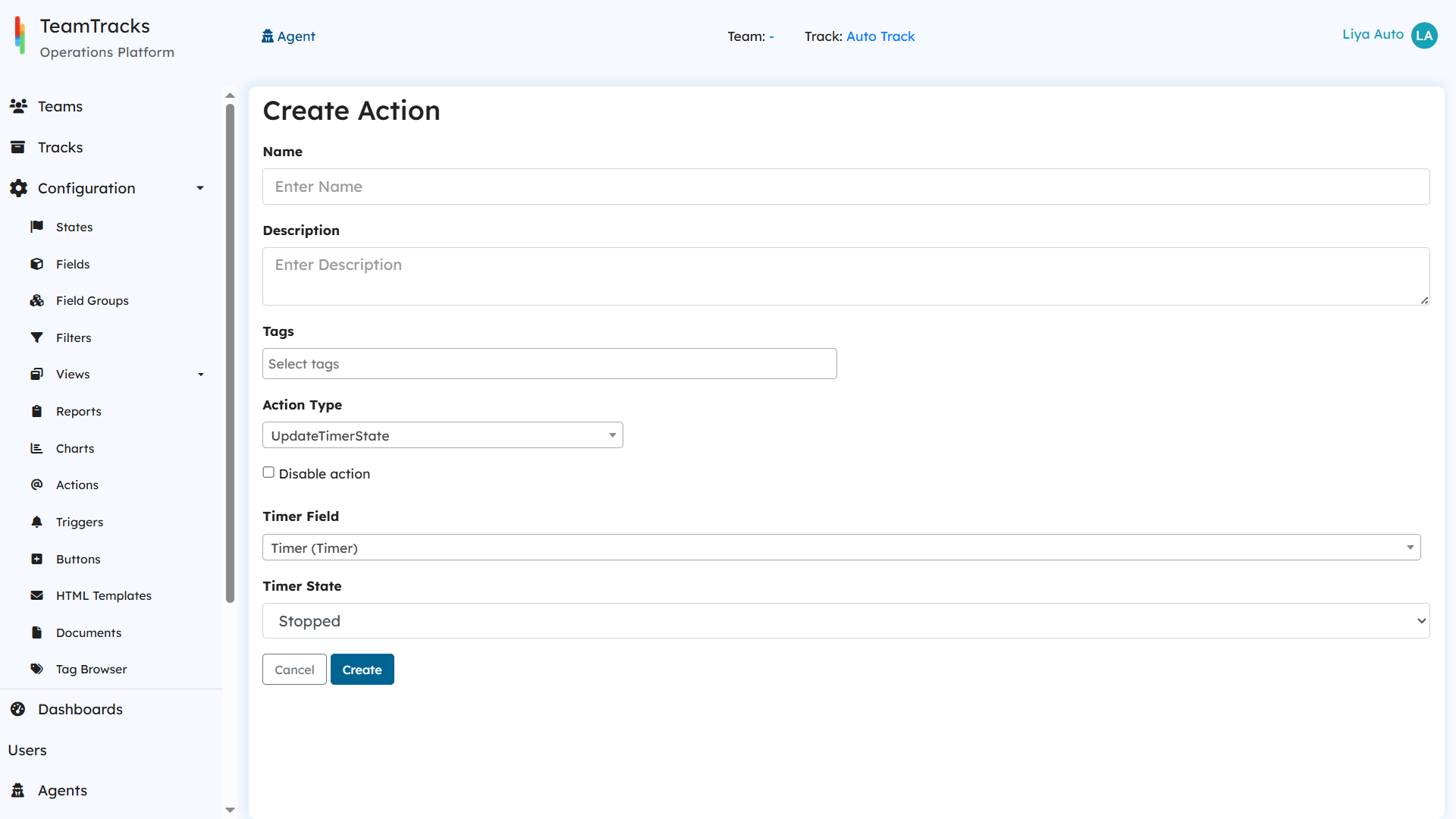
Admin Portal: Create action screen for UpdateTimerState
Initiating Timer fields
When a timer field is first created, it is in the not started state. This is true for timer fields with literal and filed as timer source. You must start the timer using the Update Timer State action for the timer to start counting. Create an action to change the state of the timer to started and add it to a trigger to execute to start your timer.
Terminal State
Once started, the stopped state is the terminal state for a timer. If you start the timer again, the timer value is reset to 0 ( or the elapsed time from the default timer source date or the default timer value depending on your configuration )